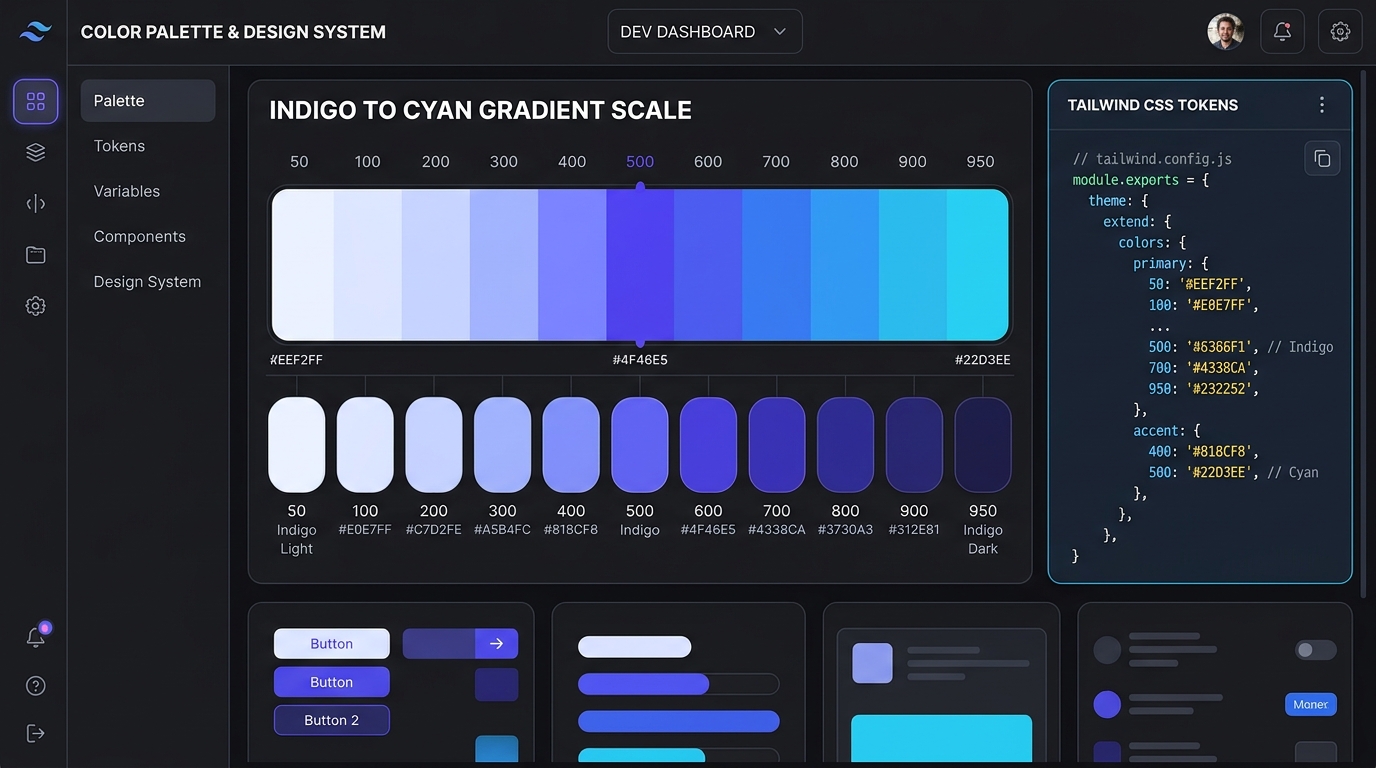
The Problem with Linear Color Math in Frontend Systems
Every frontend engineer building a design system eventually hits the same roadblock: you take your company's marketing hex code—say, a royal blue like #2563EB—and attempt to build an 11-step Tailwind CSS color scale (50, 100, 200 ... 900, 950).
The intuitive first approach is basic math: convert the hex to HSL, keep the Hue and Saturation constant, and linearly step the Lightness parameter from 95% down to 5%.
The result? A disaster.
- Light tints (
50,100) look washed-out, milky, and gray rather than vibrant. - Mid-tones (
400,500) jump jarringly in perceived brightness. - Dark shades (
800,900) collapse into muddy, murky browns and lifeless black.
Why does this happen? Because human vision does not perceive brightness linearly.
The Science: Perceptual Lightness & The Helmholtz-Kohlrausch Effect
Our retinas do not weigh wavelengths equally. Green light (550nm) appears drastically brighter to the human eye than pure blue (450nm) at the exact same physical luminance. Furthermore, the Helmholtz-Kohlrausch effect dictates that highly saturated colors appear significantly brighter than desaturated colors of the exact same measured lightness.
In traditional HSL color space, hsl(60, 100%, 50%) (pure yellow) and hsl(240, 100%, 50%) (pure blue) have the exact same mathematical Lightness value: 50%. Yet to any human observer, yellow is brilliant and blinding, while blue is deep and dark.
The Solution: Curve Bending. To build a natural-looking Tailwind scale, you must curve-bend both Hue and Saturation as you step Lightness. Light shades need a subtle hue-drift toward warm ambient light, while dark shades require increased saturation to avoid looking muddy.
How to Generate a Complete 50-950 Scale Automatically
Instead of manually guessing 11 individual hex values in Photoshop, use our automated Tailwind Shades Generator. It computes continuous perceptual curves and outputs production-ready code ready to drop into your project.
Here is how you wire the generated tokens into your tailwind.config.js using modern CSS custom properties:
Functional Role Mapping for Each Step
Having 11 shades is useless if your engineering team does not know which step belongs on which component. Here is the standard role mapping used by leading design systems:
- 50 & 100: Subtle alert backgrounds, selected table row highlights, and tinted badge containers.
- 200 & 300: Secondary borders, disabled button outlines, and progress track fills.
- 400 & 500: Icon accents, placeholder text highlights, and dark mode interactive states.
- 600: Primary interactive triggers: primary buttons, active checkboxes, focus rings, and links.
- 700: Mouse hover state for primary 600 buttons (maintains positive contrast).
- 800, 900 & 950: Dark mode card elevation, deep modal surfaces, and high-contrast typography on light tint badges.
Dark Mode Integration: The Inversion Principle
In light mode, your primary button uses bg-brand-600 with white text. But in dark mode, saturated 600 shades can vibrate against near-black backgrounds.
By using CSS custom property aliases (e.g. var(--color-primary)), you can dynamically map dark mode to use brand-500 or brand-400, softening the optical vibration while ensuring compliant text contrast.
Next Steps: Build Your System
Ready to standardize your frontend color tokens? Explore our full developer toolset:
- Generate complete 11-step scales from any hex in seconds using our Color Shades Generator.
- Test your button and text contrast with the WCAG Contrast Checker.
- Explore 400+ pre-built, production-tested color combinations in the UI Palettes Directory.
- Inspect individual hex tokens in the HEX Color Inspector.